

Connect Cline to AXL
A name, a URL and a button, then a browser sign-in with no key to paste, and Cline has tools over your CRM, sites, courses, automations and email.
1 · Add the server
Open MCP Servers → Remote Servers, enter the name axl and the URL, and click Add Server. Remote, not local: AXL's MCP server is hosted, not something you run.
https://app.axl.tech/mcp
Menu path checked against Cline's own documentation. It is somebody else's UI and it moves.
2 · Sign in
Your browser opens on an AXL consent screen. It names the client that asked and shows which account the agent will act as; if you administer more than one, switch there before approving. What the client receives is an ordinary admin access token scoped to that account, which is why the agent inherits your permissions rather than a separate set.
3 · Ask for something
“Take this list of 40 people and import them as contacts tagged ‘webinar-may’.”
Import validates before it writes, so a bad row is reported rather than half-applied. What an agent can finish →
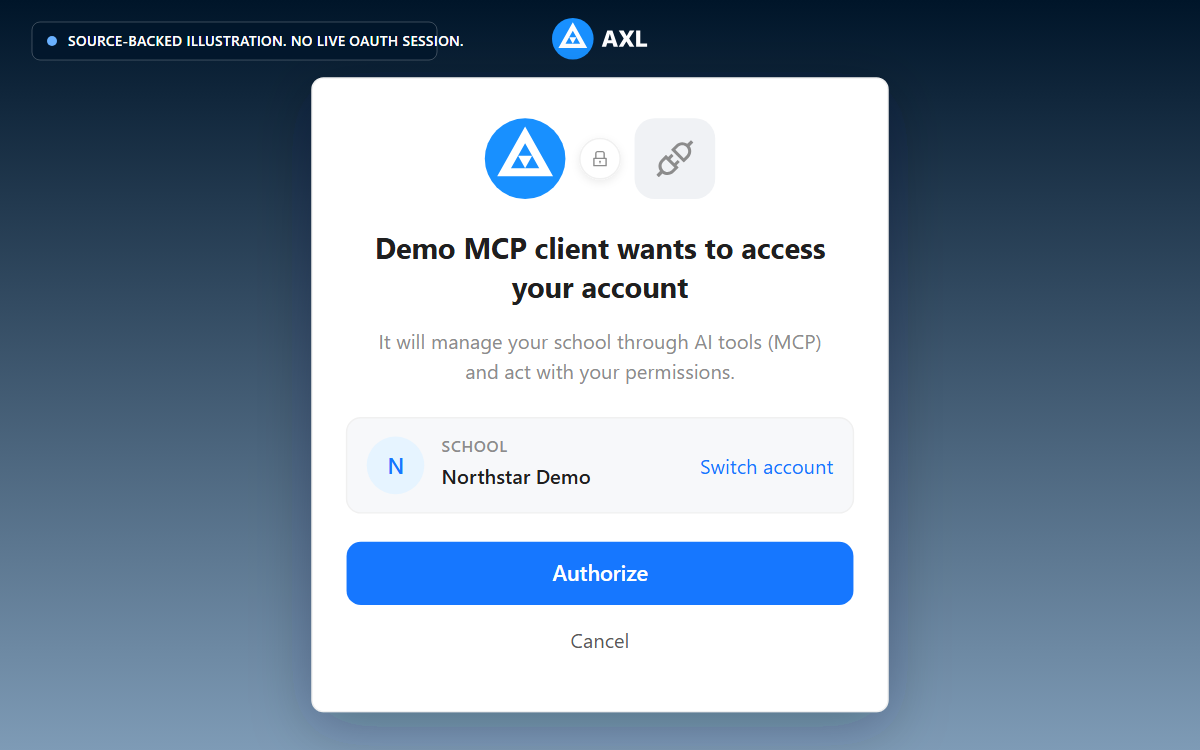
Review the school and access request before you approve the connection.
If it does not work
- •The agent stops on an upload. Uploading a file leaves the MCP surface for one step: a raw
PUTto a pre-signed URL, so a client that can only call MCP tools cannot finish it alone. - •The browser never opened. The client registers itself first, and that step fails quietly if the URL is not exactly the endpoint. Re-check it, then remove and re-add the server.
- •Approval failed with “no school”. The token is scoped to an account and you have not created one yet. Finish that, then connect.
Cline acts as you, with your permissions, in one account. It writes without publishing (publishing and sending are separate steps you ask for), and 21 sensitive operations are not on its surface at all. What an agent can never do →